How to Replace a Game Boy Advance SP Screen Safely
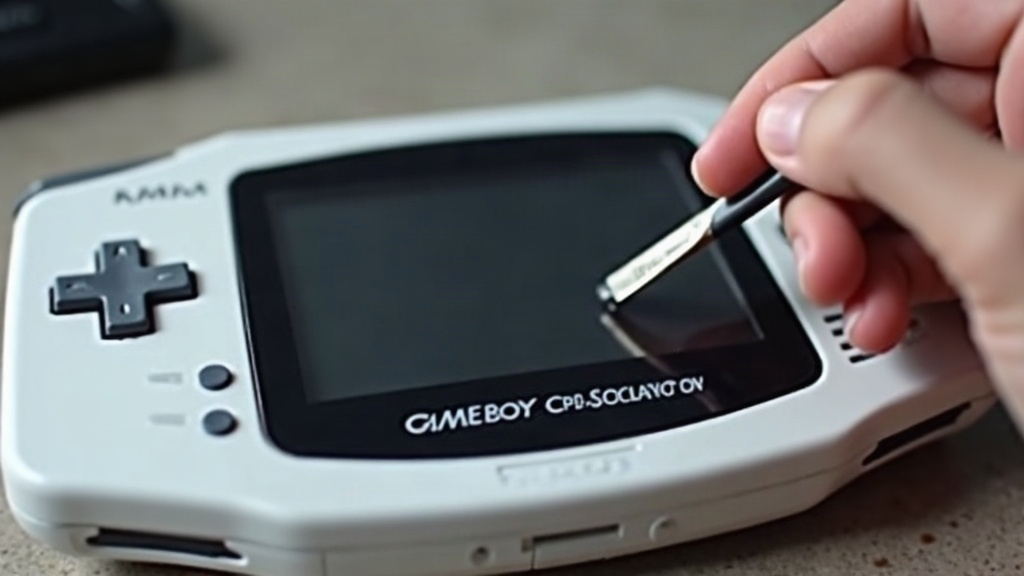
Replacing a Game Boy Advance SP screen isn’t hard, exactly, but it’s unforgiving if you rush the ribbon cable. That cable is thin, folded into a tight accordion shape, and it doesn’t forgive a crease or a hard pull. Open the console fully, release the connector the right way, and feed the new cable through the hinge without twisting or tugging it. Do that, and you’re fine.
Before You Start: Confirm Your Screen Type
Game Boy Advance SP consoles shipped with two different display types, and mixing them up is the single most common way people ruin a repair before it even begins.
- AGS-001: Front-lit screen, noticeably darker when the light is switched off.
- AGS-101: Backlit screen, brighter and sharper across the board.
These two assemblies (and their ribbon cables) aren’t always interchangeable, so don’t assume. Check the sticker inside the battery compartment, or just look at your existing screen closely before you order anything. Some aftermarket IPS kits also demand a specific shell, a new lens, or even soldering work, which is a bigger project than most people expect.
For a straightforward swap, buy a screen that’s explicitly listed as compatible with your exact SP model. Skip that step and you’re gambling.
Tools You Will Need
Lay everything out before you crack the shell open. Nothing kills momentum like hunting for a spudger with a ribbon cable dangling half-exposed.
- Tri-wing Y00 screwdriver
- Small Phillips screwdriver
- Plastic spudger or guitar pick
- Fine tweezers
- Small tray for screws
- Microfiber cloth
- Replacement GBA SP screen
- Optional: compressed air and isopropyl alcohol
Stay away from metal pry tools near the screen cable and the shell clips. One slip and you’ve scratched the board or, worse, sliced the cable clean through.
Important Ribbon Cable Safety Rules
The display ribbon runs from the top screen, through the hinge, and into a connector on the motherboard. It’s the fragile heart of this whole repair, so treat it that way.
A few rules worth memorizing:
- Never force it. If it won’t budge, stop and check the hinge channel or connector before you pull harder.
- No sharp folds. A hard crease can snap the internal traces, and you won’t know until the screen turns to garbage.
- Grip the reinforced end, not the flexible middle. Tweezers on the exposed flex section is asking for trouble.
- Keep it straight. A twist during installation means the screen won’t sit flush, no matter how many times you press it down.
- Test before you close everything up. Reopening a fully assembled hinge because of one loose connection is a waste of an afternoon.
Step 1: Remove the Battery and Outer Screws
Power the console off, pull the cartridge, open the battery cover, and set the battery aside.
Grab the tri-wing screwdriver and start removing screws from the back shell, usually clustered near the corners and around the battery compartment. Pay attention to screw length. A screw that’s too long in the wrong hole can crack a plastic post or dig into something it shouldn’t.
Lift the lower shell gently. If it resists, don’t force it, there’s almost always a screw you missed somewhere.
Step 2: Disconnect the Existing Screen Cable
With the board exposed, find the display ribbon connector near the hinge. It slides into a small socket on the motherboard, usually held by a dark plastic locking tab.
Use a plastic spudger, or even a fingernail, to lift that tab gently. Don’t pry at the whole connector housing itself. Once it’s unlocked, the ribbon should come free with almost no resistance, like it barely wants to stay put.
If it’s not sliding out easily, stop right there. Double-check the latch is actually open. Yanking on a still-locked connector is probably the number one way people tear these cables.
Step 3: Remove the Top Screen Assembly
The upper shell houses the LCD and typically hides its screws under rubber covers on the front bezel. Pry those covers up carefully with a plastic pick, then remove the Phillips screws underneath.
Separate the lens or bezel slowly. If adhesive is holding it down, press evenly around the edges instead of bending the plastic, which cracks more easily than you’d think, especially on older units.
Lift the old LCD panel out and take a good look at how the cable folds and routes through the hinge. Honestly, just snap a photo with your phone. It takes five seconds and saves a lot of guesswork later, especially if this is your first time doing one of these.
Step 4: Feed the New Ribbon Cable Through the Hinge
This is where most repairs go sideways.
Straighten the new cable only as much as you absolutely need to. Feed the narrow end through the hinge channel, matching the direction of the original. Use tweezers only on the reinforced tip, and guide it through rather than yanking from the far end.
Work it through in small steps:
- Feed a few millimeters through the hinge.
- Check it hasn’t twisted.
- Adjust the screen position slightly.
- Keep going until the connector end reaches the motherboard.
If it catches on something, back off, realign, and try again rather than pushing through. Forcing it is exactly how you end up with a crease that shows up later as flickering, colored lines, or a screen that just stays black.
Step 5: Seat the Screen and Reconnect the Cable
Set the new screen into the top shell, making sure the cable isn’t getting pinched anywhere. It should sit evenly in its recess, facing the right direction (it’s surprisingly easy to get this backward when you’re focused on the cable).
At the motherboard, slide the ribbon straight into its connector, flat and even across the full width. If one edge looks like it’s sitting deeper than the other, pull it back out and redo it. Don’t force an uneven connection hoping it’ll work anyway.
Once it’s fully seated, press the locking tab down gently. The cable should hold on its own, no tape, no extra pressure needed.
Step 6: Test Before Reassembling Everything
Hook the battery back up and power the console on before you’ve put a single screw back or reattached the lens.
Look for:
- A clear image right at startup
- Correct brightness or front-light behavior
- No vertical lines, no flickering
- No washed-out patches from a loose connection
- Smooth hinge movement without the display cutting out
Blank screen? Power off, reseat the ribbon, try again. Nine times out of ten, a post-repair display problem traces back to a connector that’s slightly off-center or not fully clicked into place.
Common Mistakes to Avoid
Small errors here can quietly turn a $15 screen replacement into a $60 motherboard problem.
Pulling the Cable Through the Hinge Too Quickly
The hinge opening is narrow, and rushing the cable through in one motion is how it gets nicked or creased. Slow beats fast every time on this step.
Forgetting the Connector Lock
A cable can look inserted, sit there looking perfectly fine, and still not be secured. Always close that locking tab, every single time, no exceptions.
Pinching the Cable Under the Screen
Before closing the top shell, trace the cable path with your eyes one more time. A pinched cable under a tightened bezel screw is a classic way to kill a fresh repair.
Testing Only After Full Reassembly
Test while the console is still open. It takes an extra thirty seconds and spares you from reopening a hinge you just closed, which is never fun.
Conclusion
A good Game Boy Advance SP screen replacement isn’t about speed, it’s about how carefully you handle that ribbon cable. Unlock the connector properly, guide the new cable through the hinge without twisting it, and test everything before you seal it back up. With a bit of patience and the right tools, you can bring a dim, cracked, or dead SP screen back to life without wrecking the delicate cable that makes it all work.