Game Boy Color IPS Screen Kits for Original Shells & Buttons
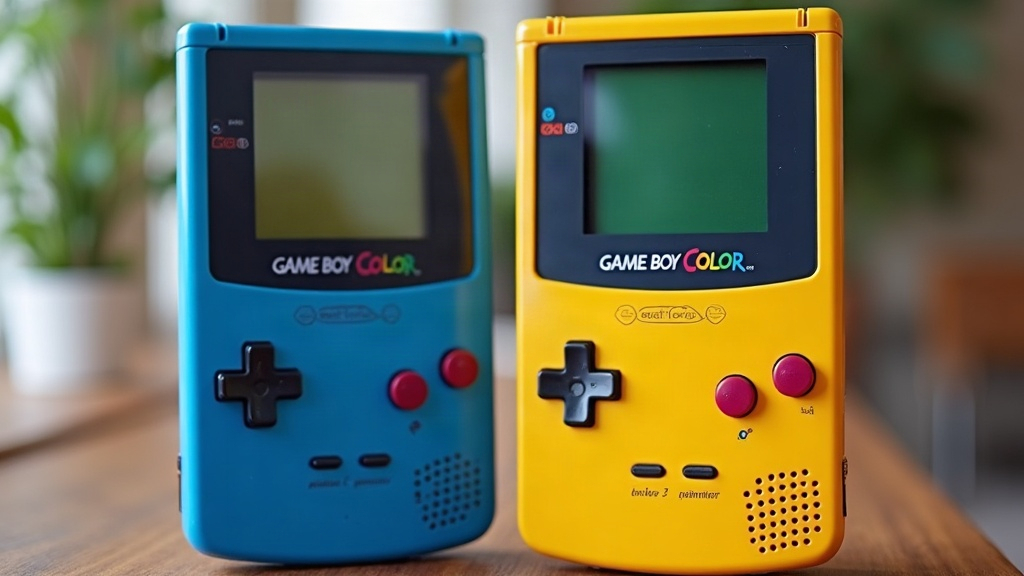
Not every Game Boy Color owner wants a full shell swap or aftermarket buttons just to get a brighter screen. If you love the feel of the original clicky D-pad, the exact button travel, and the nostalgic heft of a stock shell, here’s the good news: modern IPS screen kits are now built specifically to drop into unmodified GBC shells, no cutting required.
Why Keep the Original Shell and Buttons?
A lot of modders chase that “best of both worlds” build: vintage ergonomics paired with modern visuals. The original GBC shell has a button feel that aftermarket clones rarely nail. Stock rubber membranes, factory-tuned D-pads, those slightly textured shoulder buttons, all of it adds up to what makes the console feel “right” in your hands. An IPS kit lets you keep that intact while fixing the one real weakness of the original hardware: the dim, reflective, low-contrast stock LCD.
What Makes a Kit “Shell-Friendly”
Not all IPS kits are created equal. Before you buy, check for these traits:
- No-cut design - the PCB and glass fit within stock shell dimensions, no shell shaving needed.
- Low-profile ribbon routing - cables that don’t press against the original volume wheel or speaker grille.
- Button-clearance board layout - some early IPS boards interfered with the start/select membrane; newer revisions route around it.
- Compatible mounting posts - kits that use the GBC’s existing screw bosses rather than relying on adhesive-only mounting.
A few names come up again and again in this category: the Funnyplaying GBC IPS kit (there’s a laminated glass variant too), the RetroSix GBC IPS board, and the Hispeedido IPS V2. All three explicitly market “no shell modification” compatibility.
Installation Overview
For a first-timer, budget 45 to 90 minutes for the full teardown. Here’s roughly how it goes:
- Open the shell with a 4.5mm tri-wing or a compatible bit. The original screws are notoriously stubborn, don’t force them.
- Remove the motherboard carefully, and note the ribbon cable orientation for the original screen before you pull it.
- Disconnect the stock LCD and swap in the IPS board, matching ribbon polarity exactly. Reversed polarity is the number one cause of “no display” complaints.
- Test before reassembly - power it on with the shell open to confirm the picture and brightness controls actually work.
- Reinstall buttons and membranes in the original order: rubber pads, then plastic buttons, then the D-pad. Make sure none of them get pinched by the new board’s edges.
- Close the shell and check for gaps around the screen window. Sometimes you’ll need minor glass shimming to get a flush fit.
Common Issues and Fixes
- Screen shows color banding or lines: usually a loose ribbon connector. Just reseat it.
- Buttons feel “mushy” after install: the membrane probably shifted during reassembly. Pop it open and realign before closing fully.
- Backlight bleed at edges: some kits ship with a light-blocking gasket. Install it, even if it looks like an optional extra.
- Shell doesn’t close flush: look for a pinched speaker wire, or a volume wheel contact arm that got pushed out of position.
Is It Worth It?
For $25 to $45, the typical price range for a decent kit, you get a dramatically better viewing experience: wider viewing angles, accurate colors, and brightness you can actually use in daylight. And you don’t give up the tactile identity of the original hardware to get it. For collectors and players who care about authenticity as much as performance, this is probably the best upgrade path on the market for the GBC right now.
Final Thoughts
An IPS screen kit built for stock-shell compatibility splits the difference between preservation and practicality. You keep the real buttons, the real shell, the real feel, but you finally get a screen that does your favorite GBC games justice. Pick the right kit, take your time with the install, and this turns into one of the most rewarding retro handheld mods you can knock out in an afternoon.