Reducing Input Lag on a Raspberry Pi CRT Emulation Setup
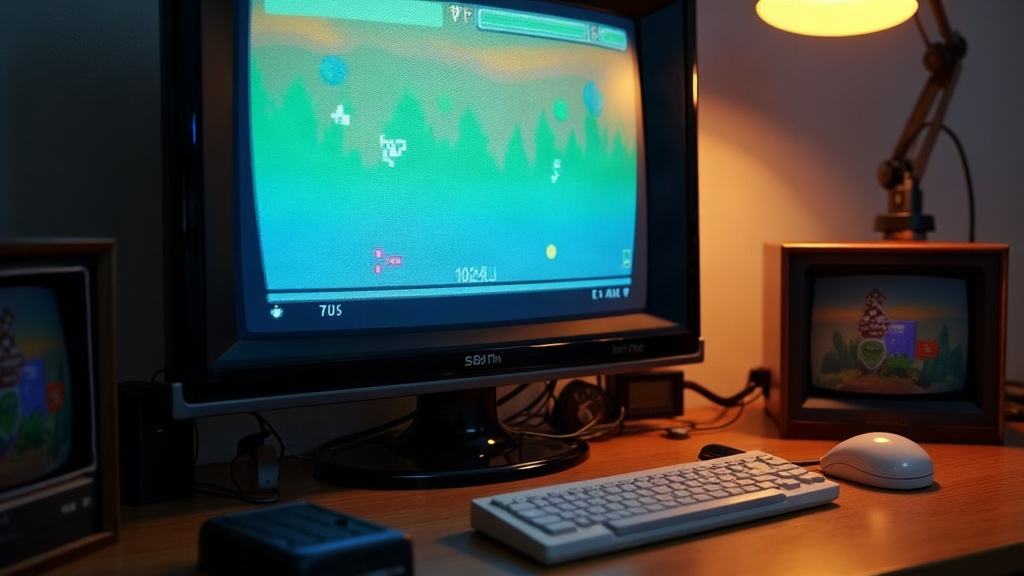
If your Raspberry Pi CRT setup feels “floaty” or just a beat behind compared to the real hardware, chances are it’s input lag doing the damage, not your reflexes slowing down. This guide covers the techniques that genuinely move the needle: run-ahead settings, display timing corrections, controller polling tweaks, and the cabling and sync quirks that are specific to running CRT output off a Pi.
Why CRTs Expose Input Lag More Than LCDs
A CRT basically has zero lag of its own. It paints the image the instant the signal hits it, nothing held back, nothing buffered. That’s exactly why CRT purists still chase these old tubes: any delay sitting in your chain (emulator, scaler, GPU driver) becomes impossible to ignore the second you plug into one. LCDs are forgiving in comparison, their panel processing quietly eats a few extra frames of lag and you barely notice. A CRT gives that lag nowhere to hide.
Step 1: Choose the Right Output Path
- Composite/RGB via a proper DAC: Stay away from the $10 HDMI-to-VGA/SCART converters on Amazon, most of them tack on a full frame or more of buffering. Go with something built for this job: a GBS-8220/8200 board, an OSSC, or a Pi-specific RGB DAC like the Pi2SCART or RetroTINK.
- Native composite output (older Pi models): Running a Pi 3 or earlier off its composite pin skips HDMI scaling entirely. It’s the lowest-lag route you’ll find, though you’re capped at roughly 240p.
- Avoid HDMI capture/converter chains as your main signal path. Great for recording your sessions, terrible for actually playing on.
Step 2: Tune RetroArch’s Core Settings
A handful of settings here account for most of the improvement you’ll actually feel:
- Run-Ahead: Found under Settings > Latency. It re-simulates frames internally to cancel out the delay baked into emulation itself. Start at 1 frame, most cores tolerate 1-2 frames without complaint. Switch on “Second Instance” mode so non-deterministic cores don’t start glitching audio or visuals on you.
- Frame Delay: Nudge this up in small increments (0-3ms) to tighten the gap between when you press a button and when the frame actually shows up. Go too far and you’ll start dropping frames, so test it gradually rather than jumping straight to the max.
- Video Threaded: OFF. Threading adds a whole buffer frame of lag. Yes, you might get some tearing without further sync adjustments, but on a CRT the tradeoff is almost always worth it.
- Max Swapchain Images / Hard GPU Sync: ON, dialed down to 0 or 1. This makes the GPU wait its turn instead of stacking up several frames in advance.
- Vsync: Only leave this on if your refresh rate lines up exactly with the core’s output rate (this matters a lot for sync-on-green CRT setups). Get it even slightly wrong and you’ll get both extra lag and visible judder, not one or the other.
Step 3: Match Refresh Rates Exactly
CRTs don’t forgive sloppy timing. Feed a 60.0988 Hz NES core into a 59.94 Hz display mode and you’ll hear audio crackle plus periodic frame drops that feel exactly like lag, even if your measured average latency is actually fine.
- Use core-specific refresh rates (Settings > Video > Sync in RetroArch) instead of leaving everything locked to a flat 60Hz.
- On a Pi 4/400 feeding a CRT through a scan-converter, pin down
hdmi_modeandhdmi_timingsinconfig.txtso they track your target core’s native rate as tightly as possible.
Step 4: Controller and Polling Fixes
- Wired beats wireless, every time. Even a well-paired Bluetooth pad adds 10-30ms of polling delay. If you care about feel, USB wired is non-negotiable.
- Poll Type Behavior: Set it to “Early” in RetroArch’s input menu, this reads input before the frame gets processed rather than after.
- Turn off input drivers you’re not using (udev vs. linuxraw). On a Raspberry Pi OS Lite install, linuxraw tends to carry noticeably less overhead.
Step 5: System-Level Optimizations
- A modest overclock paired with decent cooling helps more than people expect. Thermal throttling creates uneven frame timing that feels exactly like lag, even though it’s really a heat problem.
- Stick to a lightweight OS image (RetroPie or Batocera) and kill services you don’t need, Bluetooth daemon if you’re wired-only, Wi-Fi power management, that kind of thing.
- Keep ROMs and saves on a fast microSD (A1/A2 rated) or a USB SSD. A stutter during autosave can masquerade as input lag if you’re not paying attention.
Measuring Your Results
Don’t just trust your gut here, film it instead. Grab a phone that shoots 240fps or higher, point it at both your screen and the controller at once, and count frames between the button press and the on-screen reaction. A properly tuned Pi CRT rig should sit around 1-2 frames (16-33ms), right in line with what original hardware delivers.
Conclusion
There’s no single magic toggle that fixes input lag on a Raspberry Pi CRT setup. It’s a chain of smaller wins stacking together: a clean, low-latency video path, run-ahead and frame delay dialed in properly, refresh rates matched exactly, wired controllers, and a system that isn’t quietly overheating. Work through these one at a time, measure each change with frame-counted video so you actually know what helped, and don’t skip steps based on feel alone. Get it right and your Pi will feel every bit as responsive as the original console plugged into that same tube.